Overview Dashboard
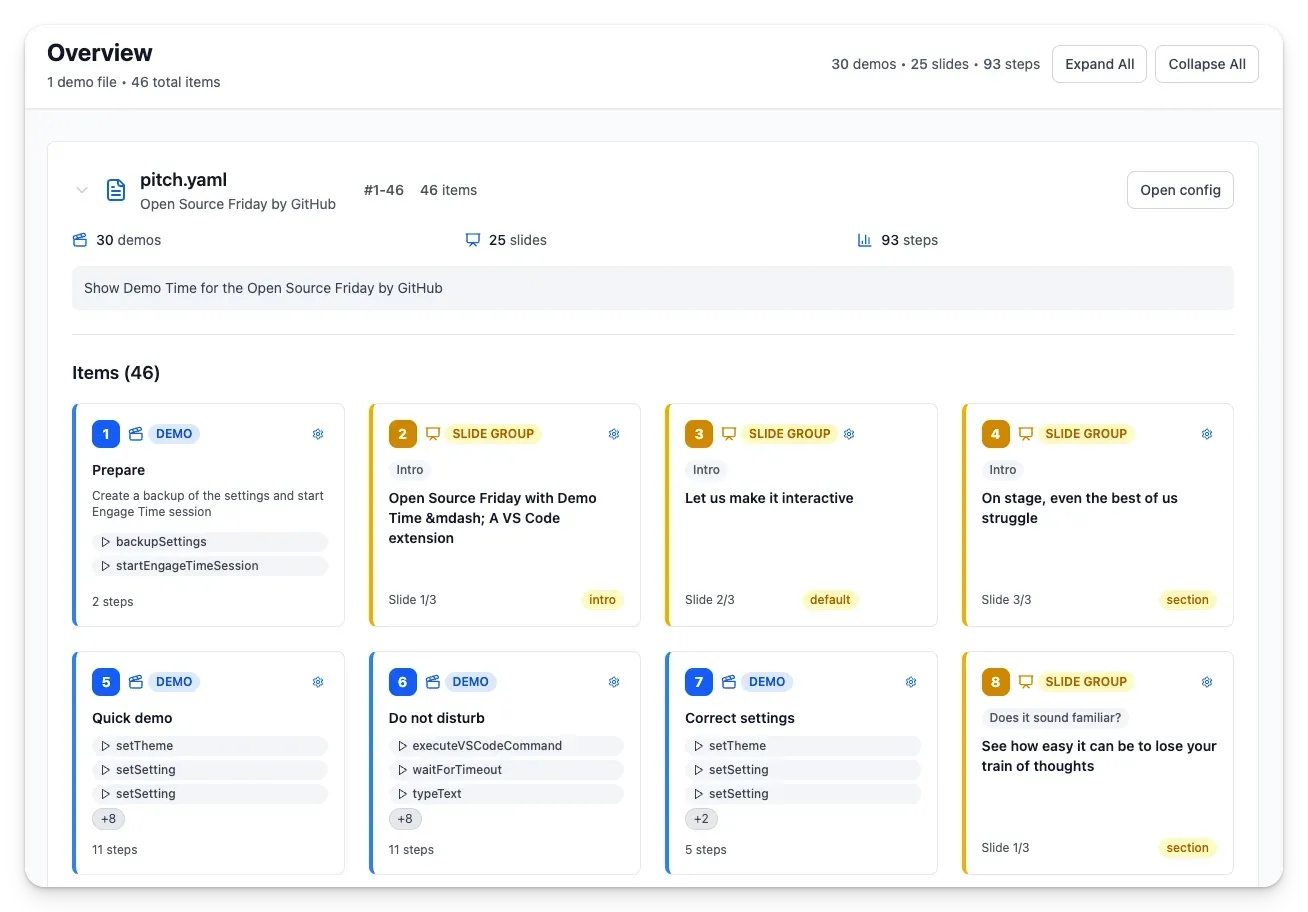
Demo Time includes an Overview dashboard that gives you a high-level view of your demos, slides, and presentation status. The Overview is useful for quickly navigating between demos, jumping to specific slides, and monitoring the current presentation when you’re presenting or rehearsing.
Opening the Overview
Open the Overview with the command Demo Time: Overview from the Command Palette (Cmd/Ctrl+Shift+P). The dashboard opens in a new panel and shows all scenes defined in your Act file along with their status and metadata.
What the Overview shows
- Scene list: A table or grid of scenes with title, description, and status (enabled/disabled).
- Slide counts: The number of slides per scene and the total slides in the current group.
- Current session: If a presentation is active, the overview highlights the currently playing scene and slide.
- Quick actions: Start/stop a scene, jump to a specific slide, open scene settings, or run a scene by ID.
Actions and shortcuts
From the Overview you can:
- Start a scene or open the presenter view.
- Run a scene move-by-move or jump directly to a slide.
- Open the act configuration editor for quick edits.
These actions are exposed as toolbar buttons inside the dashboard and can also be triggered via the scenes and automation moves described elsewhere in the docs.
When to use the Overview
- Before a talk: verify scenes, order, and slide counts.
- During rehearsal: quickly jump between scenes and slides to rehearse specific parts.
- Live presenting: monitor the current act and use quick actions to recover from mistakes or skip ahead.