
Presenter View
When you use two screens during a presentation, you can use the detachable presenter view which you can move to another screen. This way you can keep an eye on the next steps while presenting without showing it to your audience.
Follow these steps to use the presenter view:
- Run the
Demo Time: Show presenter viewcommand to open the presenter view. - The presenter view will open in detached mode. If that is not the case, you can drag tab out of the Visual Studio Code window.
- Once detached, you can move it to another screen.
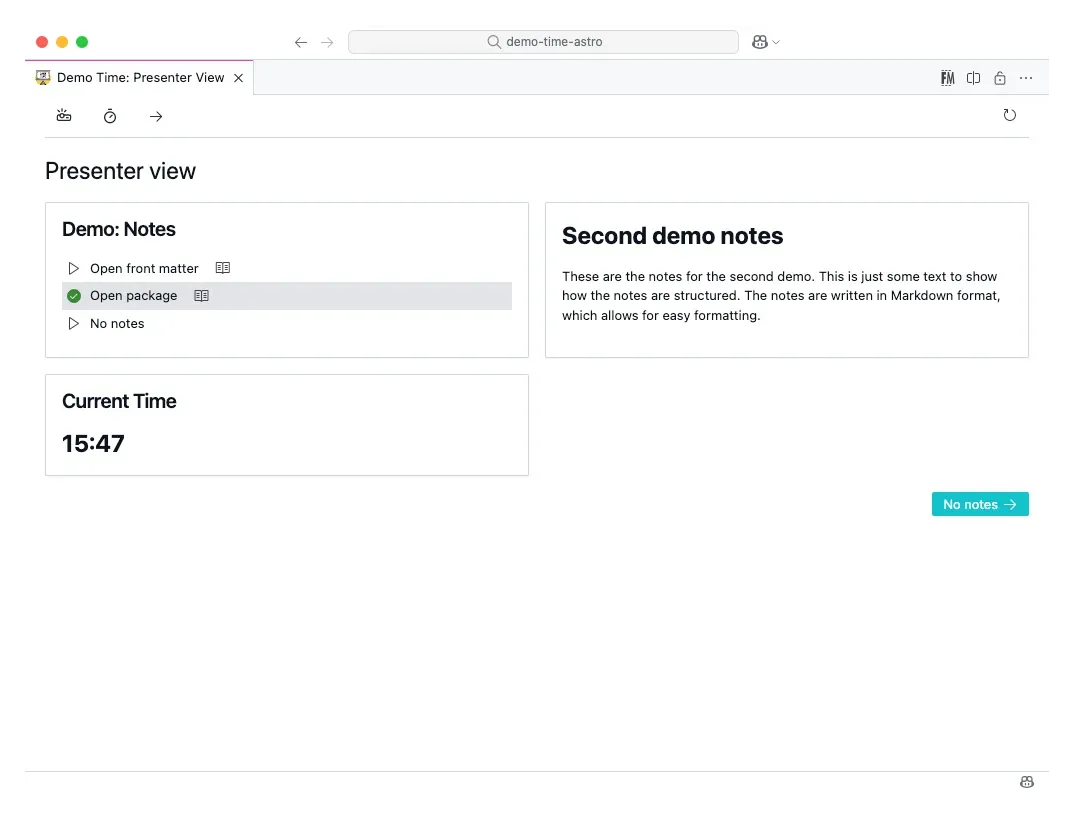
The advantage of using the presenter view is that you can see the notes and the next steps while presenting.
Next slide preview
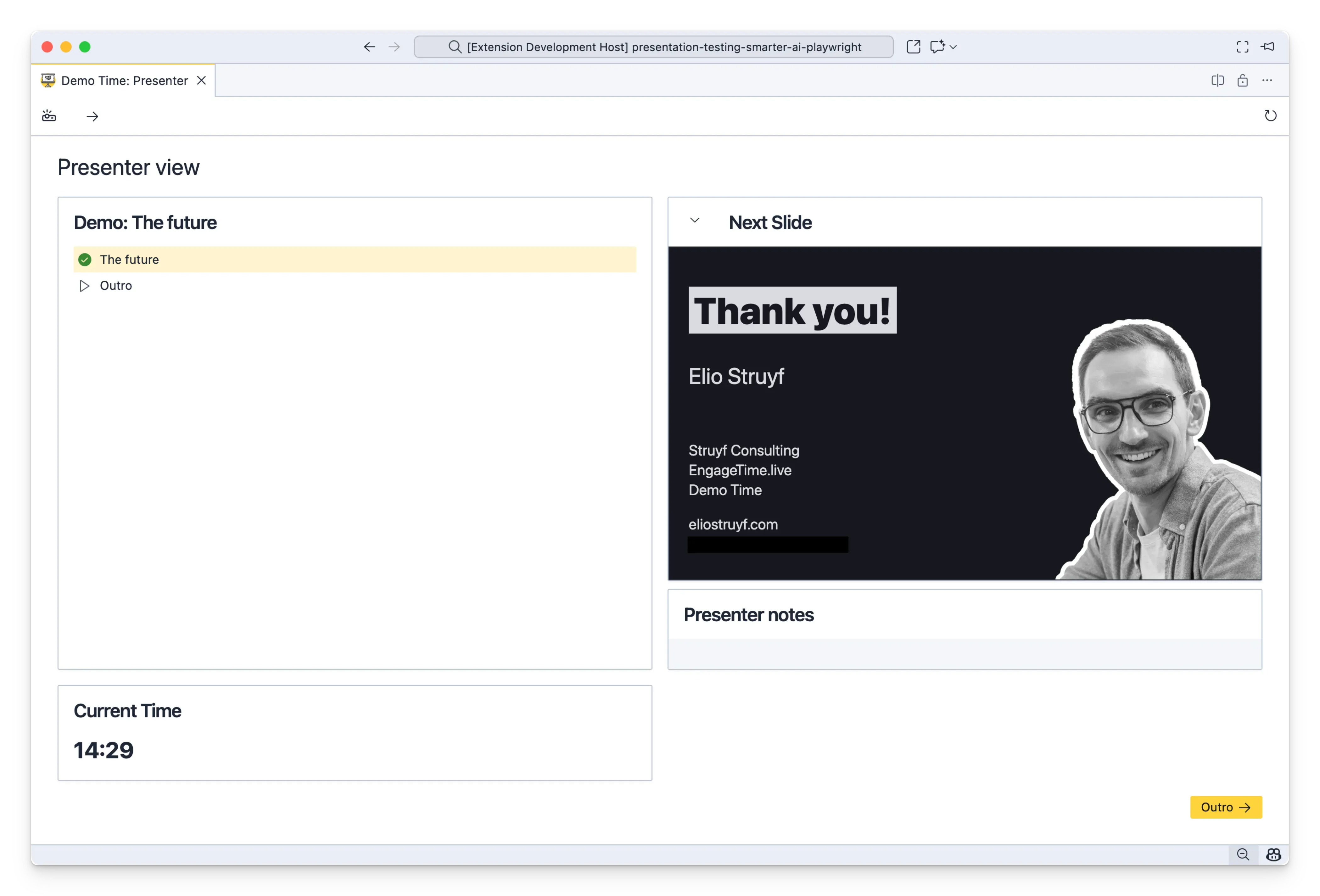
The presenter view can show a live preview of the next slide. This helps you prepare for what’s coming next while presenting.
Requirements
To use the next slide preview feature, you need to enable the Demo Time API by setting demoTime.api.enabled to true in your VS Code settings.
How it works
- When you navigate through your slides, the presenter view automatically updates to show a preview of the next slide.
- The preview appears above the presenter notes in the right column of the presenter view.
- You can collapse or expand the preview by clicking the chevron icon next to the “Next Slide” header.
- The preview is hidden automatically when the next action is running another demo (e.g., using the
runDemoByIdaction).